Verify Extracted Work in Progress Data
In this article, you'll learn how to verify extracted data from contractor work in progress reports.
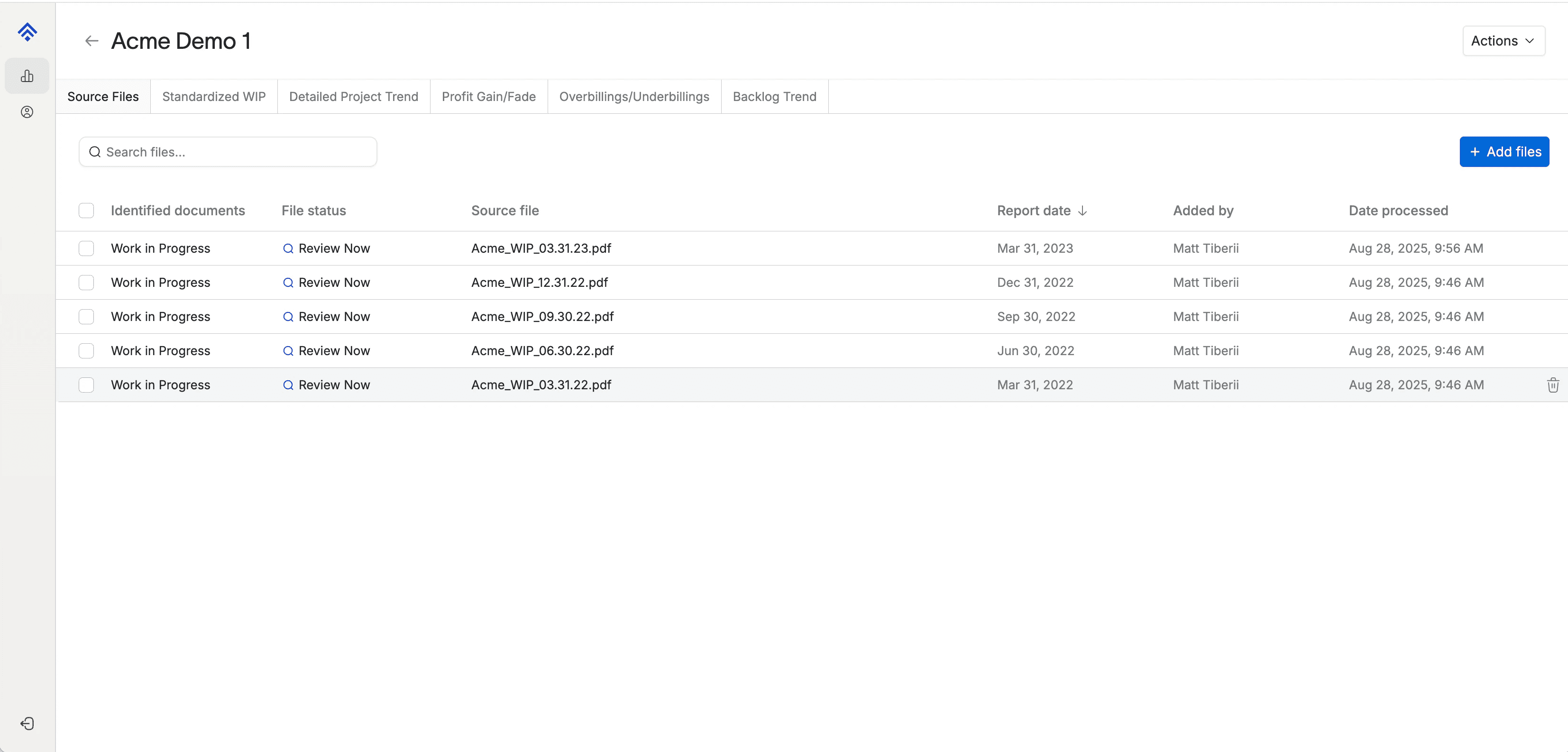
First, select a processed file from the Contractor page. If there are multiple WIPs, start with the earliest report date.
You'll be brought to the WIP detail page, where you can see the extracted data in the top grid, and the original WIP in the file viewer below.
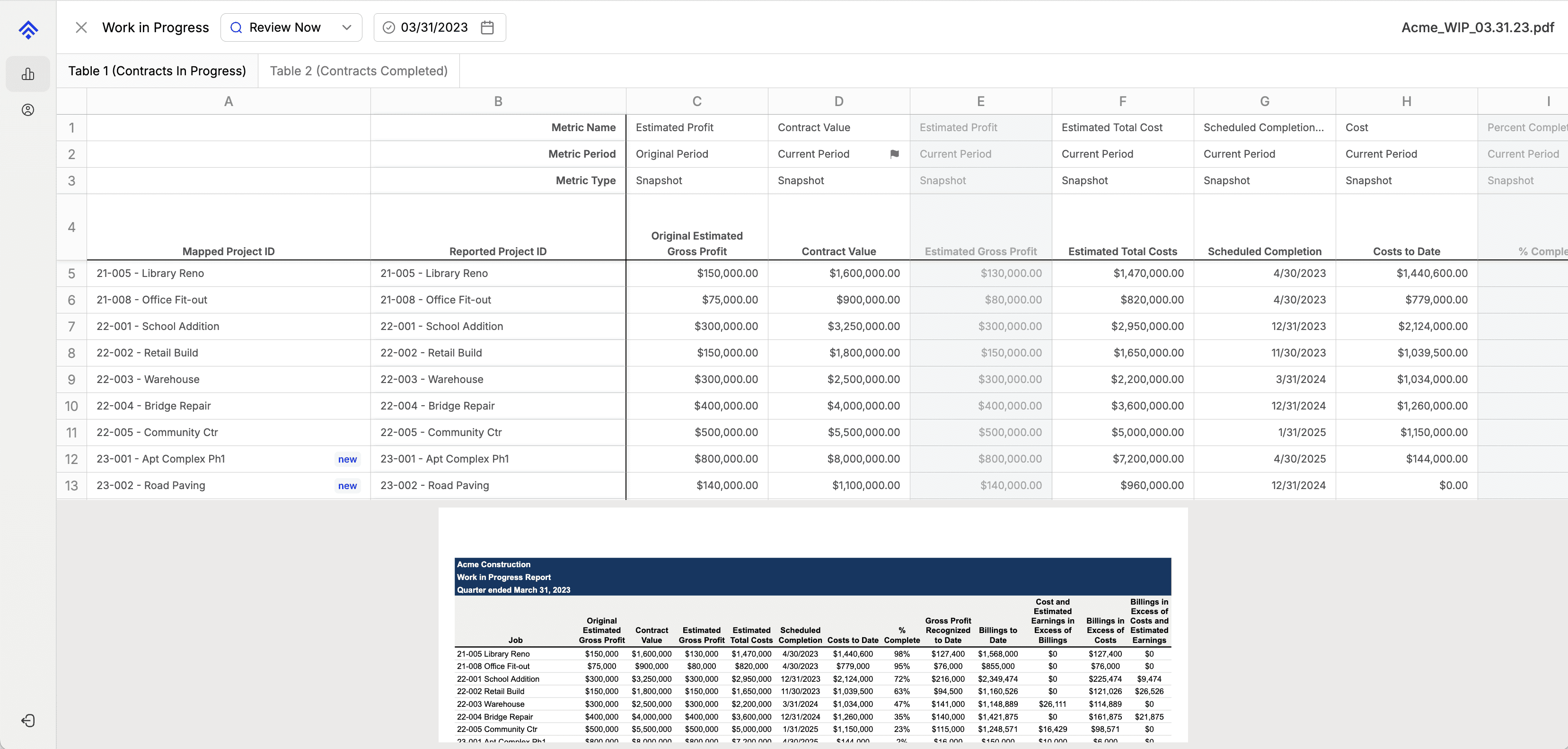
The goal is to verify AI performed the following operations correctly:
Extracted the report date
Tagged and linked projects to prior WIPs
Assigned column headers
Extracted numerical data

Report Date
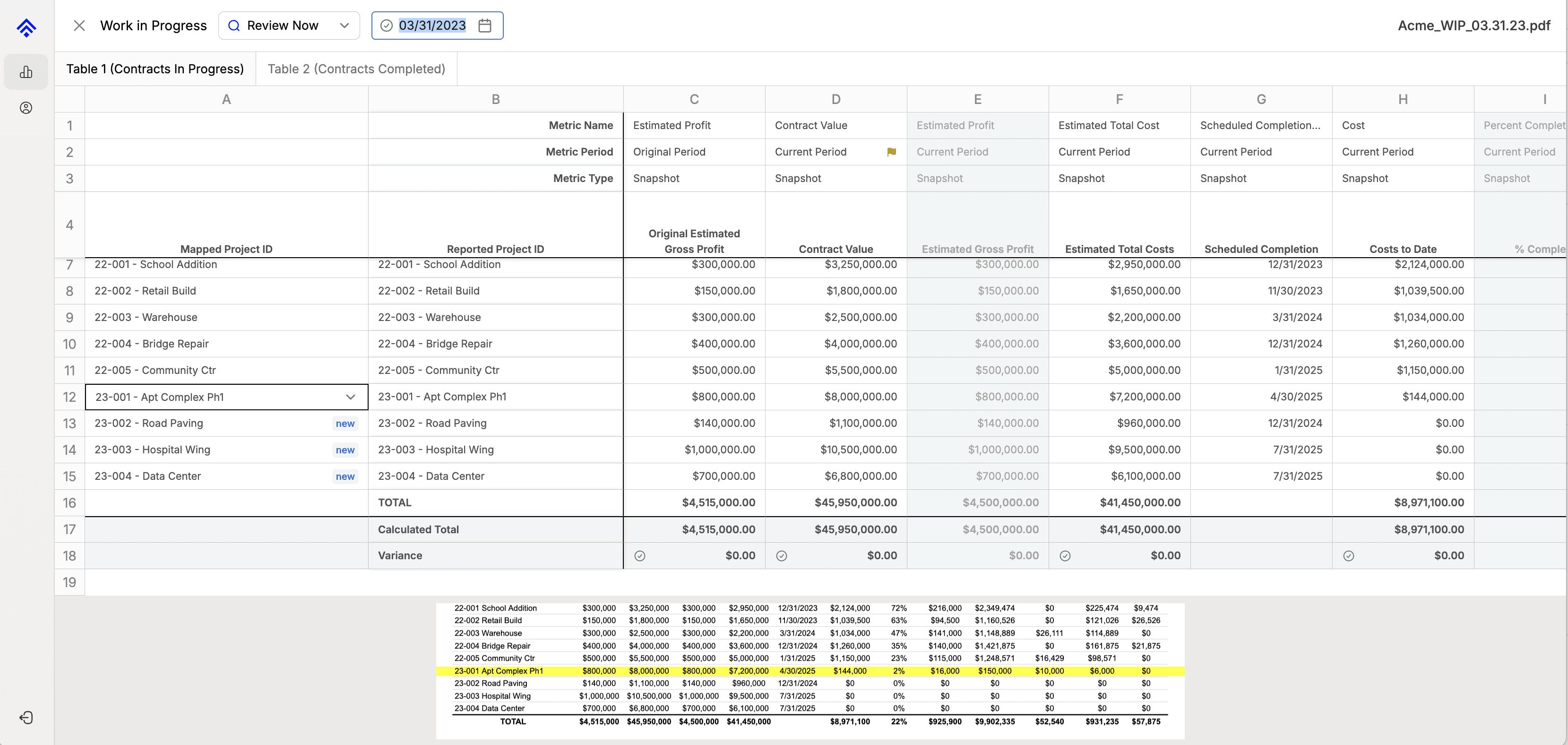
First, verify the report date was extracted correctly from the document. If you need to modify it, click the date field and enter the new value using the MM/DD/YYYY format.
Projects
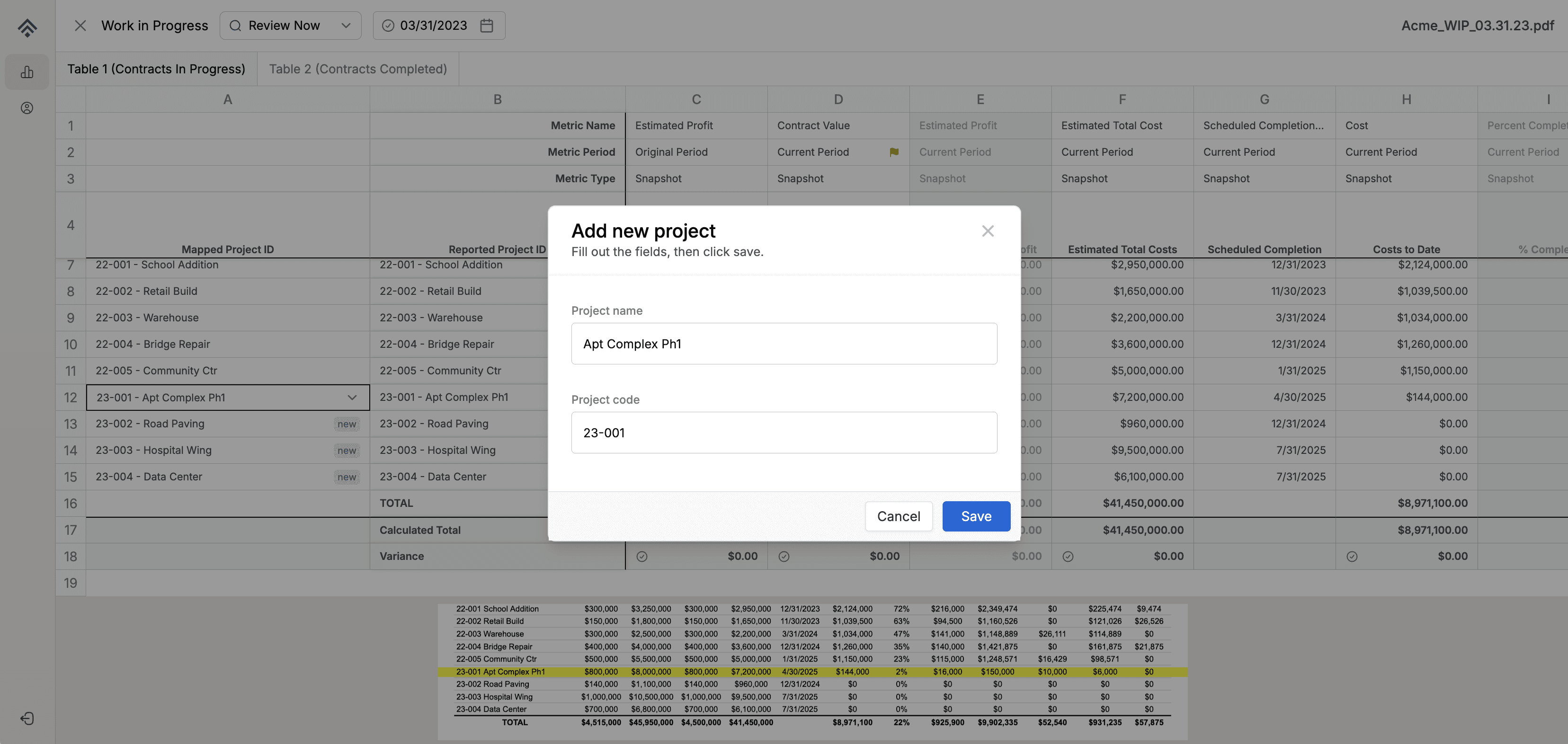
Next, verify the projects were tagged correctly. Boom maintains a central project registry for each contractor. When the AI identifies a new project on a Work in Progress (WIP) report, it automatically adds the project to the contractor's registry. If a project name matches one from a previous WIP, the system automatically links them together.
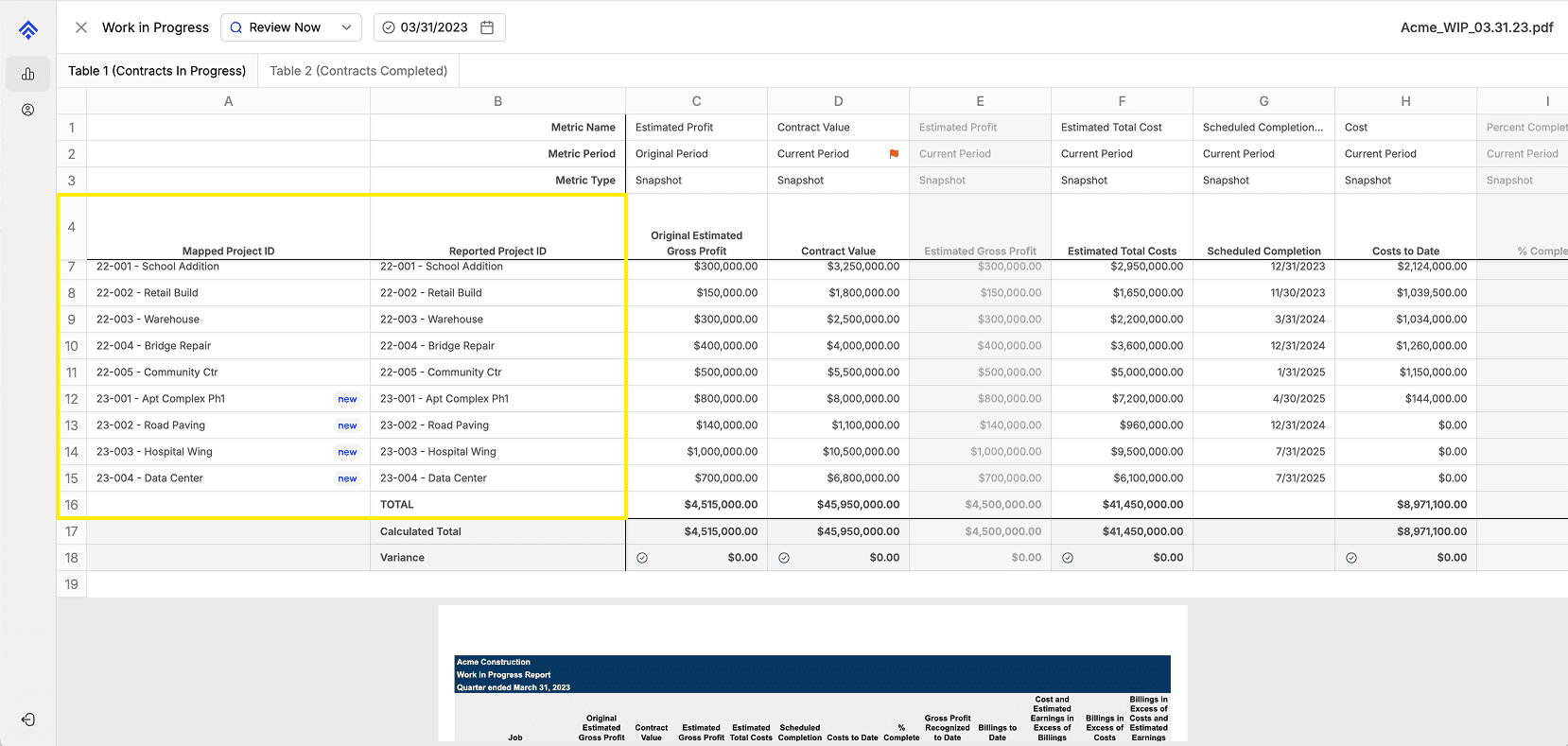
Contractors sometimes change project names, forget to include project numbers, or split projects into separate phases. Boom gives you the flexibility to edit project names, reassign projects, or create new entries if the AI incorrectly tags a project.
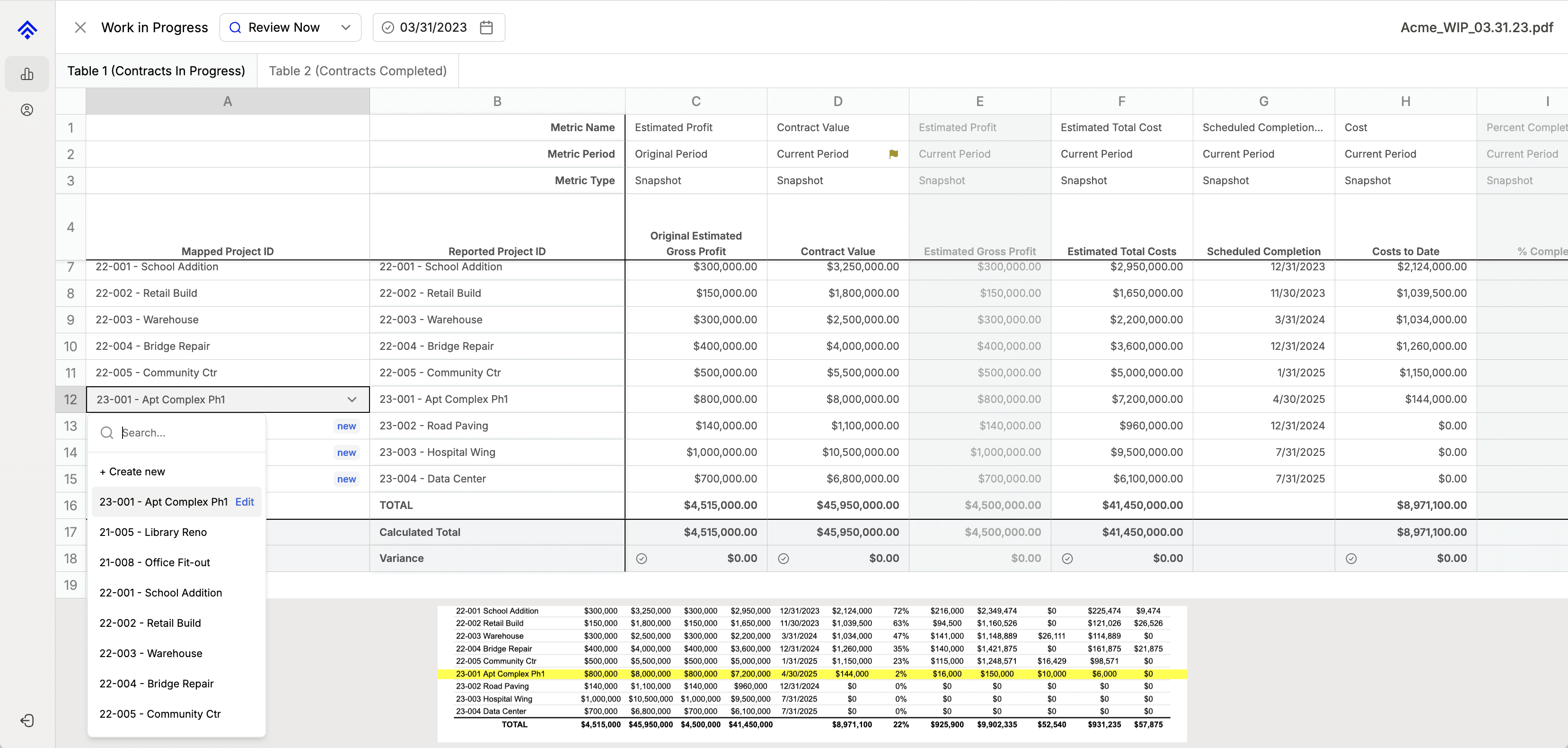
To edit the mapped project name or number, double click the mapped project ID. A dropdown will appear. Click Edit.
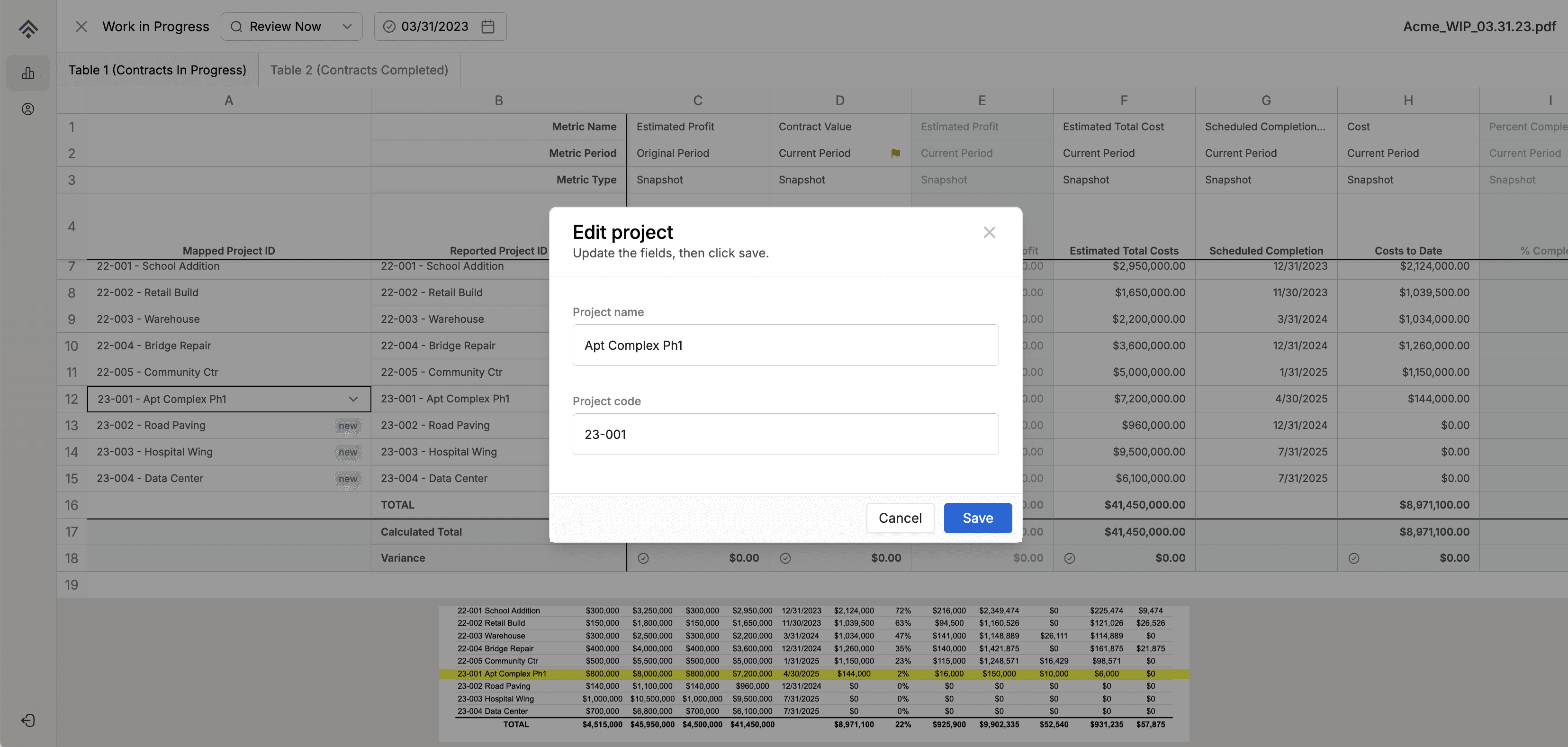
Once finished, click save and the central project registry will update.
To assign a different project, double-click the mapped project and select the desired project from the dropdown menu.
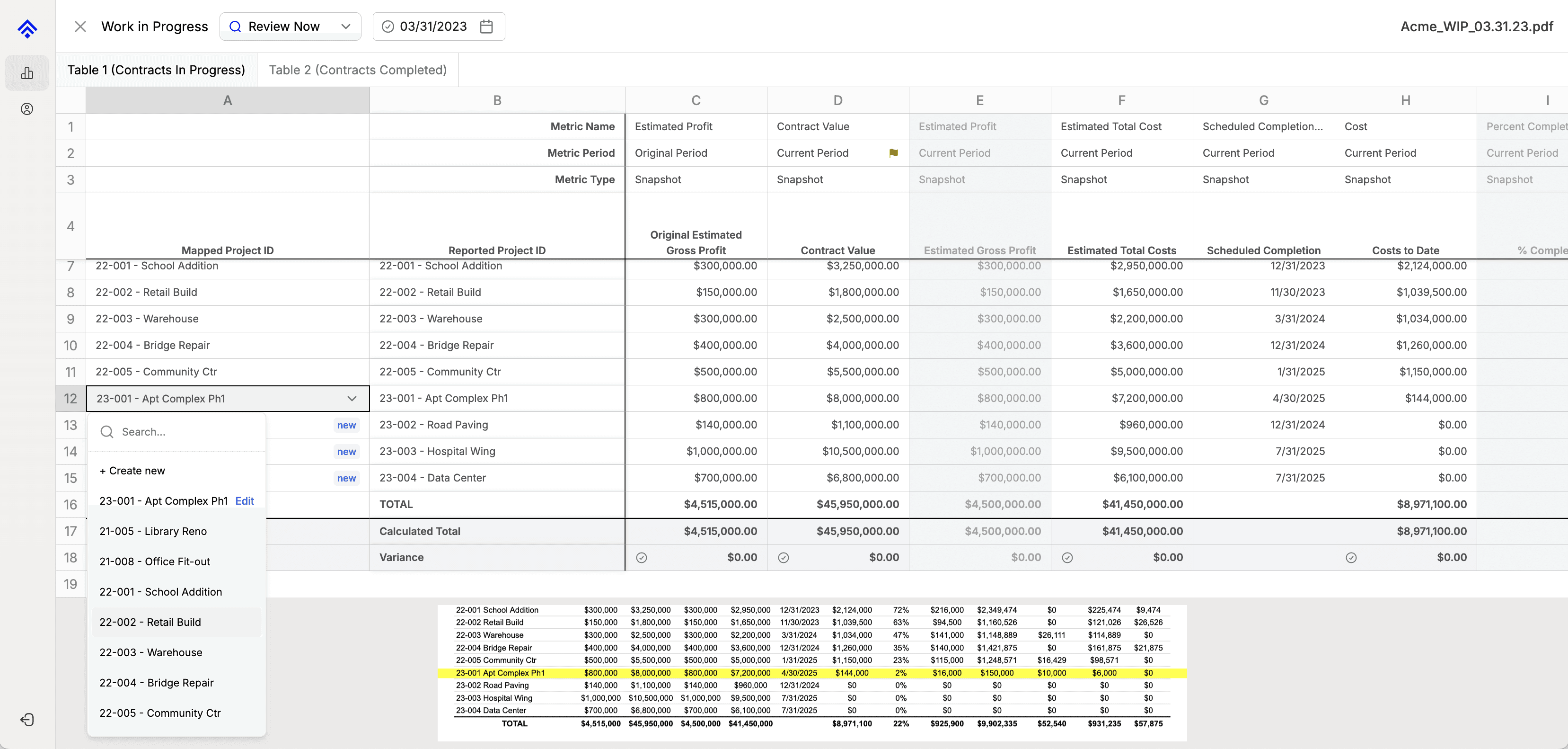
To create a new project, click + Create new.
Column Headers
There are three types of column labels to verify on a contractor WIP.
The Metric Name - what is being measured (e.g., cost or profit).
The Metric Period - when it was measured (e.g., this month or at the project's start)
The Metric Type - how it was measured (e.g., a total for the month or a balance on a specific day).
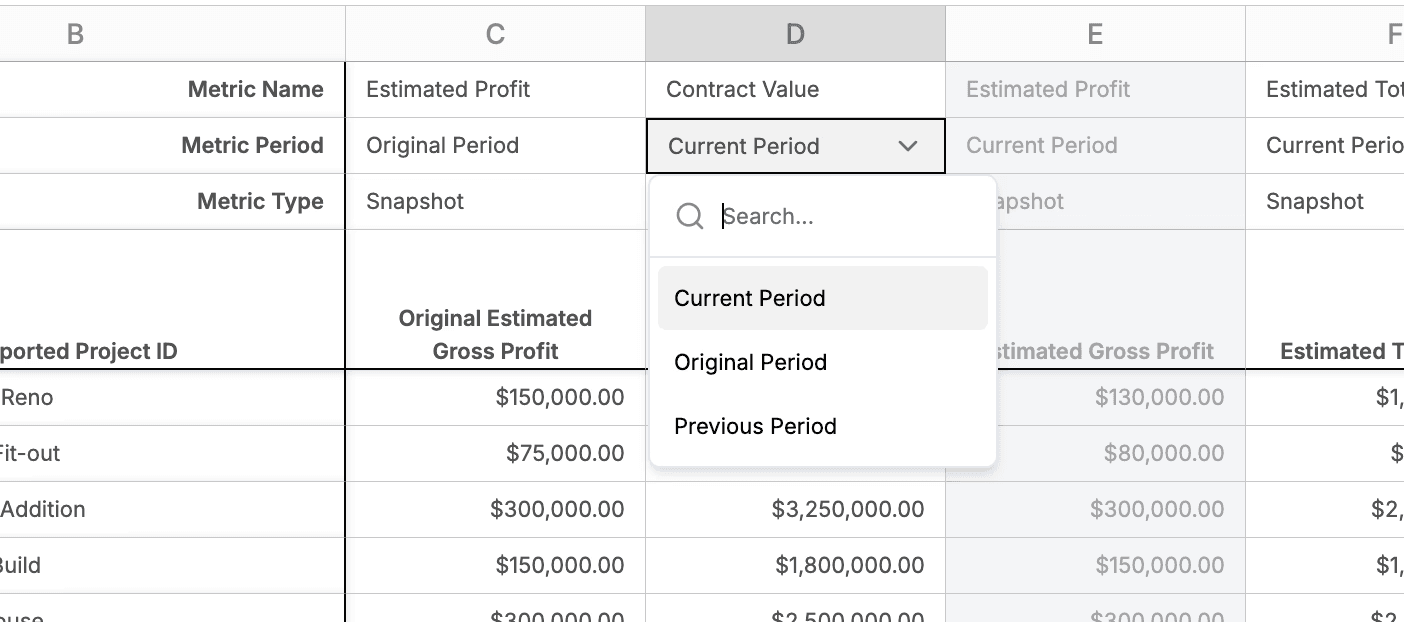
To modify the label, click the cell and a dropdown of all available options will display.
Select the correct label, and repeat for every column header with a white background.
Note: Boom uses the minimum amount of data from a contractor WIP (typically 4-5 columns) to calculate additional WIP metrics and build trend reports. Therefore, there's no need to verify columns with a gray background.
We recommend becoming familiar with all the possible metric names, metric periods, and metric types by reading, Data Labeling for Work in Progress Reports.
Numerical Data
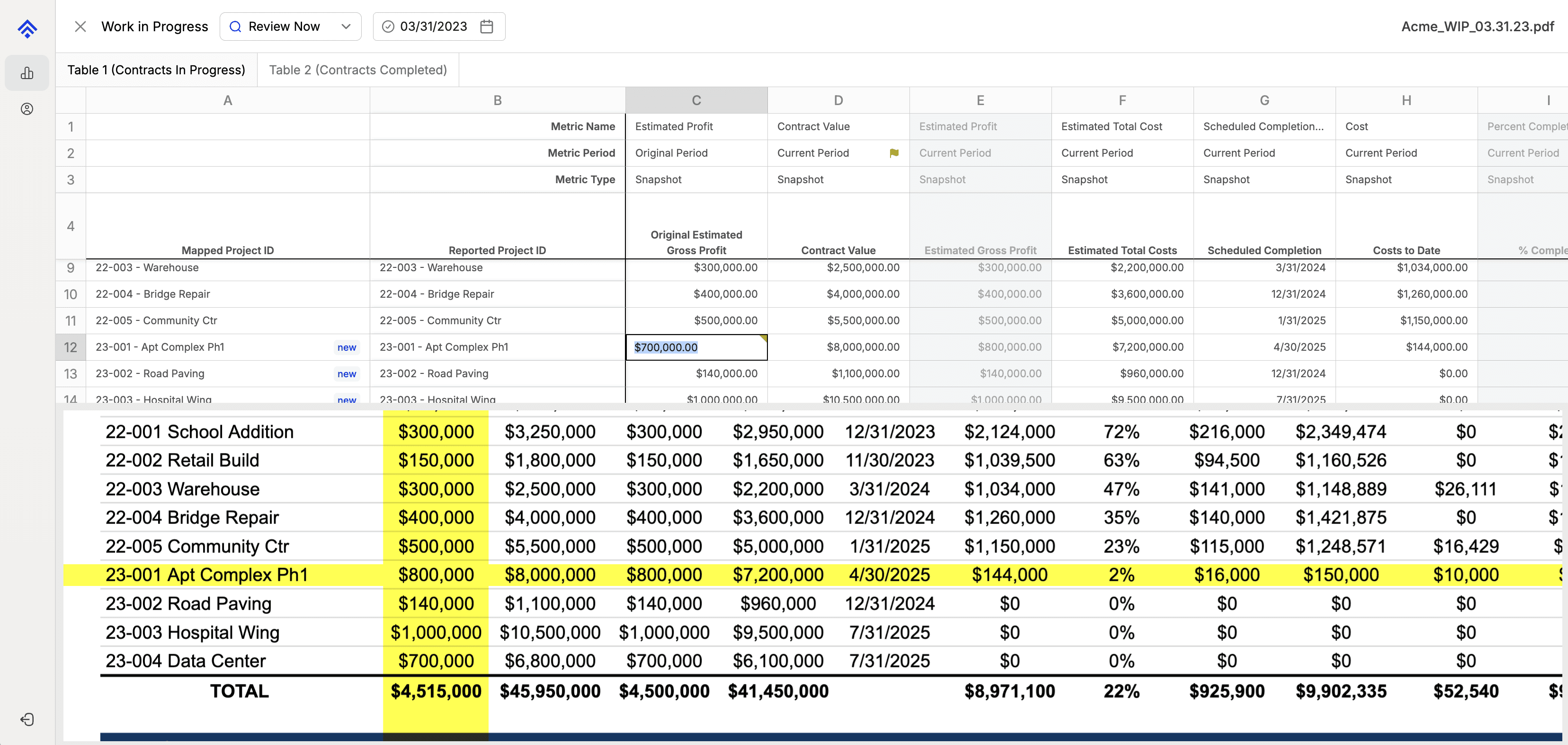
To verify numerical data was extracted correctly, Boom uses a variance check. The sum of each of the individual project values are compared to the extracted total in each column. If there's a variance, it's an indication there was a) an extraction error or b) a contractor accounting error.
In the following example, there's a $100,000.00 variance. This tell us that we need to check the column for a potential extraction error.

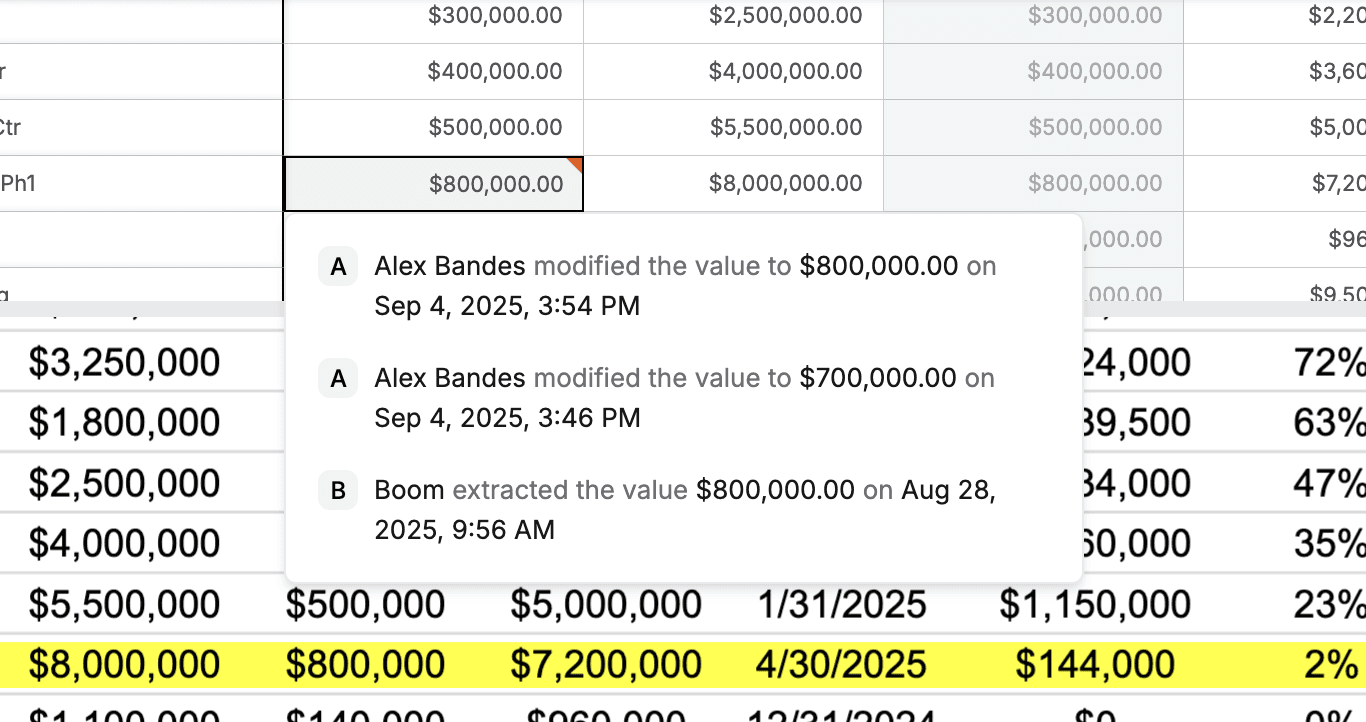
In this case, cell C12 should be $800,000.00 instead of $700,000.00. To modify the value, double click the cell and type in the correct value.
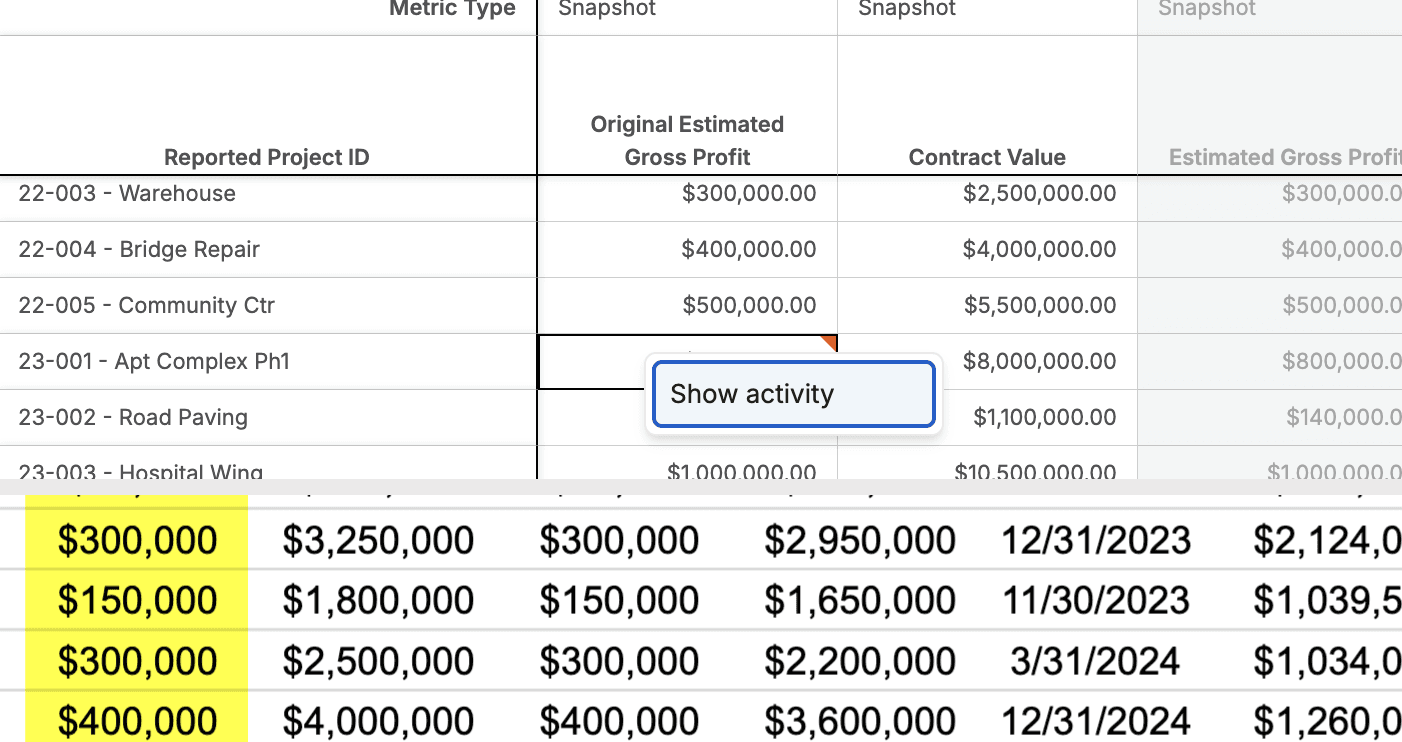
When the value of a cell is modified, Boom records that there was a change. To view the audit history, right click the cell, then select Show activity.
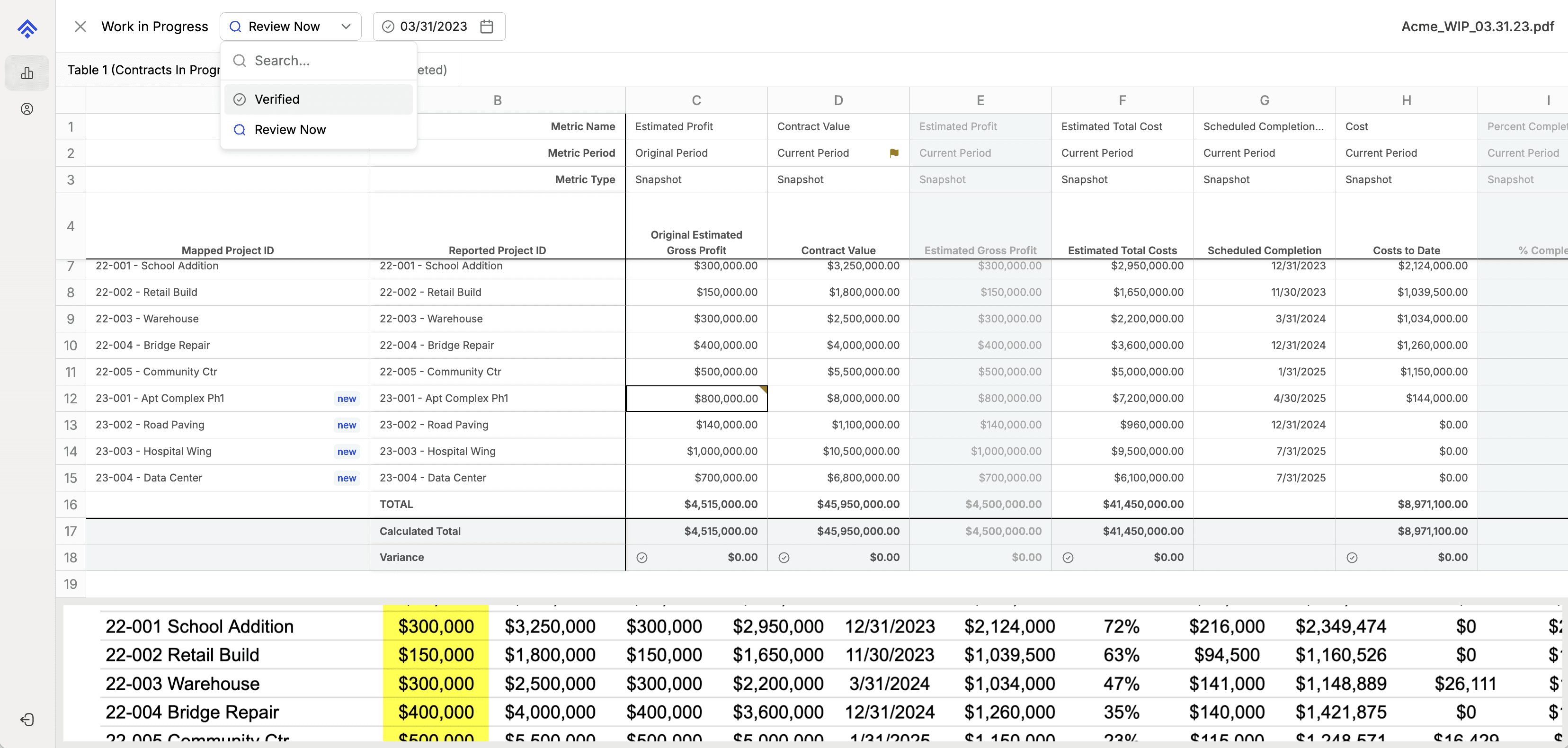
After verifying all data in the WIP, switch the file to a verified status.
Note: If Boom is integrated with your company's system of record, switching the file status to verified will send the WIP data to your system.